 iNavMock
Your first location change,
step by step.
Make changes on your Mac. Check them on your iPhone.
Try changing and restoring a location before you decide to buy.
For iNavMock 3.0 and later · Check your version in iNavMock → About iNavMock.
Check what you need
- A Mac running macOS 26.5 or later. Click → About This Mac to check. Windows and using an iPhone alone are not supported.
- An iPhone you can unlock, and a USB data cable. Some cables only charge and cannot connect devices.
- An internet connection. You need it for first-time setup, place searches, route planning and claiming the trial.
No jailbreak, coding or paid developer account is needed. Results can vary by iOS version and third-party app, so try it with your own iPhone first.
Install and open iNavMock
Open the App Store link below on your Mac to install or update iNavMock. If you have version 2.x, check for updates first. If 3.0 is not available in the store yet, try again later; the older interface differs from this guide.
You don't need to buy anything yet or install an app on your iPhone. Next, install Runner, the free connection helper for your Mac.
Install the free Runner helper

It runs on your Mac at no extra cost. It has no main window; you can find it in the menu bar at the top of your screen.
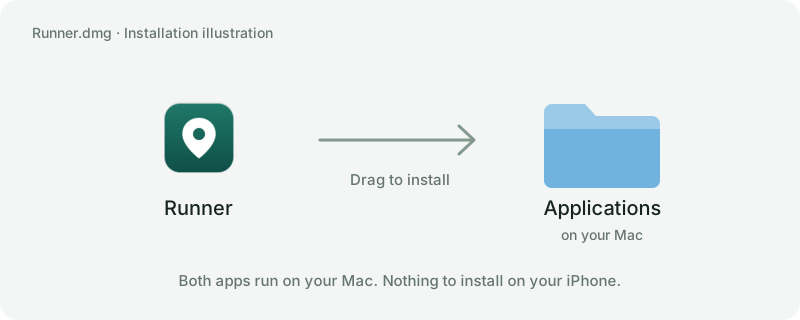
- Open the downloaded disk image. Find the Runner installer in your Mac's Downloads folder and double-click it.
- Drag Runner to Applications. Move the Runner icon onto the Applications folder beside it.
- Open Runner. In Finder, choose Applications in the sidebar and double-click Runner. It is normal for no main window to appear.
- Return to iNavMock. If it still says Runner is not running, click “Open Runner”. If it is already running, continue below.
Can't open Runner, or need to update it?
If macOS asks whether to open an app downloaded from the internet, first check that the file came from this guide. If it says the app is damaged, contains malware or cannot be verified, stop and contact us with the message. Don't disable your Mac's security protection.
Before updating, restore your real location in iNavMock and confirm it on your iPhone. Quit the old Runner from its menu, then install the new version.
Connect until you see “Device ready”
- Plug in and unlock your iPhone. Connect it to your Mac with the data cable.
- Trust this Mac on your iPhone. When “Trust This Computer?” appears, tap Trust and enter your passcode on your iPhone. You may not be asked again if you already trusted this Mac.
- Connect in iNavMock. Follow the upper-left device card. Click “Connect iPhone” when offered. If several phones are connected, select the one you want to use.
- Wait for preparation to finish. First-time setup may download connection components. Keep the internet and cable connected, and your iPhone unlocked. You don't need to find any files yourself.
If you are asked to enable Developer Mode
- On your iPhone, open Settings → Privacy & Security → Developer Mode.
- Turn it on and restart your iPhone when prompted.
- After restarting, unlock it and confirm that you want to enable Developer Mode. Then reconnect in iNavMock.
This is an iPhone system setting; you don't need a developer account. Read the system's security notice before deciding to enable it. If the switch is missing, first complete trust and connection, then retry as directed by the app. If it is still missing, contact us rather than resetting your phone.
Apple's Developer Mode instructions ↗The upper-left card shows your iPhone's name, a green dot and “Device ready”. Your device name does not need to match the screenshots.
Not ready yet? Check connection troubleshooting. You don't need to purchase anything to resolve it.
Choose a place and send it to your iPhone
Keep the USB cable connected and Runner running during simulation.
- Select “Fixed location”. Search for a place in the field above the map and choose a result, or click a place on the map.
- Check the destination on the left. Confirm the name or coordinates. Your iPhone's location has not changed yet.
- Click “Start simulation”. The first time, you will be offered the free 24-hour trial. Follow the prompts to claim it. Time starts after a successful claim; there is no automatic charge.
- Check on your iPhone. Wait for the send operation to finish, open Apple's Maps app on your iPhone and tap the location arrow. Check whether your current position moved to the chosen place. Allow Maps to use your location if asked.
Your current position in iPhone Maps moves to the chosen place. “Sent” in iNavMock means the instruction was received; check the actual result on your iPhone.
Want another place? Choose it and click “Update location”. You don't need to restore your real location first.
For your first use, try restoring below as well to check the complete process.
Click the blue “Restore real location” button
- Keep the cable connected and unlock your iPhone. If disconnected, reconnect until you see “Device ready”.
- Click “Restore real location” at the upper left. Wait for the operation to finish.
- Check in iPhone Maps. Tap the location arrow and wait for the position to refresh. Your iPhone may take a moment to update.
- Confirm your real location before unplugging. You have now tried the complete process.
Still in the wrong place? See restoration troubleshooting.
Follow a route
- Select “Follow a route”. Add points in travel order: start → optional stops → end. For a two-point route, choose the start and then the end.
- Check the list order. A is the start, B is the end, and stops between them are numbered. Each new point becomes the new end. Use the up/down arrows to reorder or × to remove a point. Scroll to see more than three rows.
- Choose “Walk” or “Drive”. Wait for a road route, distance and estimated time to appear. The default speed is set for you; adjust it with the slider if needed.
- Click “Start moving”. Your position first switches to A, then follows the route. Tap the location arrow in iPhone Maps to observe it. Walking is slower, so allow time to see movement.
- Pause moving / Continue moving
- Pause at the current position; continue from there.
- End movement
- Stop movement and keep the current simulated position.
- Restart route
- Return to A and follow the whole route again.
- Restore real location
- Stop simulation and return to your iPhone's actual location.
While moving or paused, click “End movement” before editing points, changing travel mode or loading another favorite. You can adjust speed while moving. If route planning fails, adjust the points or retry; the app will not replace it with a straight line.
Favorites and coordinates
Save a place or route
Choose a place or complete route, then click the outline star beside the destination name or above the route list and give it a name. A filled blue star means it is saved. Click it again to remove the favorite.
Click Favorites, choose an entry, then click Load preview. Check it and click Start yourself; loading does not immediately change your iPhone's position. You can also rename or delete entries in the favorites menu.
A route saves its point order, travel mode and speed choice. Loading plans the roads again and keeps a manually chosen speed. Favorites stay on this Mac only. Deleting one does not change your iPhone's location.
Enter or copy coordinates
The search field accepts “latitude, longitude”, for example 37.3349, -122.00902. Put latitude first and longitude second, separated by a comma.
The copy button next to the destination coordinates copies exactly what is displayed. A brief checkmark confirms the copy; it does not change the location.
Find help for what you're seeing
My iPhone charges but isn't detected
Unlock your iPhone and confirm trust for this Mac. Try a USB data cable or another port directly on your Mac, then reconnect in the app. If Finder cannot see your iPhone either, resolve the cable or trust issue first.
Runner is installed, but there is no window
This is normal. Runner runs in the menu bar at the top of your Mac's screen and has no main window. If iNavMock says it is not running, click Open Runner or open it again from Applications.
Preparation doesn't finish, or connection fails
Keep your iPhone unlocked, check the internet and cable, and follow the device card. First-time preparation downloads components. If an error appears, note its message and reconnect. If Developer Mode is requested, complete the setup steps, including restart and confirmation. If it still fails, contact us; repeated purchases or reinstalls are not needed.
Start simulation is gray and cannot be clicked
Check that the upper-left card says Device ready and that a destination is selected on the left. Wait if an instruction is being sent or purchases are being checked. If an error appears, follow it before retrying.
The location in iPhone Maps hasn't changed
Check that you have an active claimed trial or purchase, and that sending finished. In Apple's Maps app on your iPhone, allow location access, tap the location arrow and wait for an update. If it still hasn't changed, stay connected, select a place and send again. Follow any send error and reconnect if requested.
If Apple's Maps changes but another app does not, that app may cache a location or use another source. Results cannot be guaranteed in every app. Buying will not resolve connection or compatibility issues.
No route appears, or my iPhone doesn't seem to move
Add at least two points, select Walk or Drive, and check your internet. You can start only when the road route is ready and the start button is enabled. Retry or choose other points on roads if planning fails.
After starting, check for a paused state or send error, and tap the location arrow in iPhone Maps. Walking changes position slowly; zoom in to observe it.
Restoring hasn't brought back my real location
Allow Maps to refresh, then tap the location arrow. If it still shows the wrong place, keep the cable connected, unlock your iPhone, reconnect until Device ready, and click Restore real location again.
If unresolved, keep the app's message and contact us. Don't reset your iPhone without guidance, and don't rely on the displayed position for real navigation until confirmed.
I want to disconnect my iPhone or close the app
Use Disconnect beside the phone name in iNavMock, or Disconnect device in Runner's device menu. Reconnect when you want to use it again.
Closing the main app stops further position updates and does not actively restore your real location. Runner may remain connected during simulation. If you want to return, restore first and confirm on your iPhone.
Trial and purchases, clearly explained
When do the 24 hours start? Will I be charged?
Installing, connecting and preparing components do not use trial time. After you successfully claim the trial, all features are available for 24 consecutive hours with unlimited changes. There is no automatic charge.
Closing the app, pausing or restoring location does not pause or restart the clock. When time expires, new simulated positions stop being sent; the current position may remain simulated. Restoring real location is always free.
The trial claim fails, or purchases keep loading
Check your internet connection and that you are signed into the Mac App Store with your own Apple Account, then retry in the app. If you claimed the trial before, use Restore purchases to check its original period. If it still fails, contact us with the message; buying is not needed to resolve it.
How do I buy after trying it?
Click the crown beside the app name to see the one-time purchase page. The App Store purchase window shows the price, and you choose whether to confirm. No subscription is required. If the trial hasn't worked, troubleshoot first rather than paying to resolve a failure.
I already bought it, or changed Macs. Do I pay again?
Use the Apple Account you originally purchased with and click Restore purchases in the app to check your existing access before paying again. Restoring a trial record does not reset its original 24-hour period. Contact us if you still have questions after restoring.
Still stuck? Tell us where.
Click Feedback at the lower left of the app, or email zhangzhaopds@gmail.com ↗. Include the step you reached, the app's message, and your macOS / iOS versions. A screenshot can help.
Don't send passcodes, Apple Account passwords or your real location. Hide any information you don't want to share before taking a screenshot.